

Clearing the Cloudflare cache
Learn how to clear the Cloudflare cache for your account to fetch the most recent version of files on your website.
Overview
Section titled “Overview”Clearing the Cloudflare cache ensures that the latest version of your website files, such as updated CSS or JavaScript, is served to visitors. You can clear the entire cache or remove specific files selectively.
Important: Clearing the cache forces Cloudflare to rebuild it, which may temporarily reduce site performance.
For instructions on activating Cloudflare, see the setup guide. For detailed Cloudflare configuration, consult the Cloudflare documentation.
Steps to Clear the Cloudflare Cache
Section titled “Steps to Clear the Cloudflare Cache”- Log in to your Cloudflare account.
- In the left sidebar, click Websites, then select your domain (e.g.,
example.com).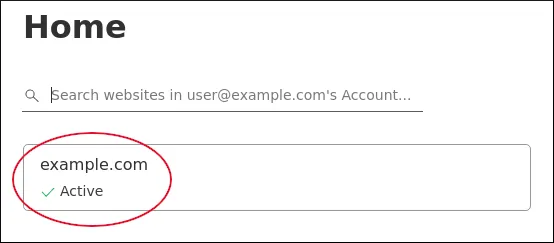
- In the left sidebar, click Caching, then Configuration.
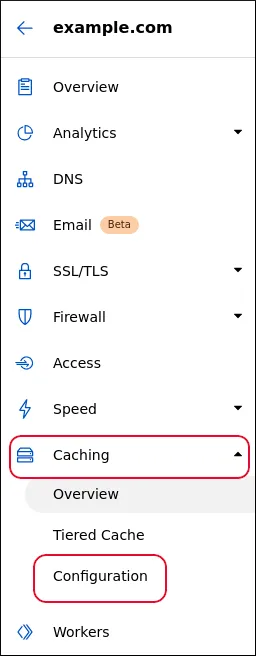
- Under Purge Cache, you’ll see the cache clearing options.
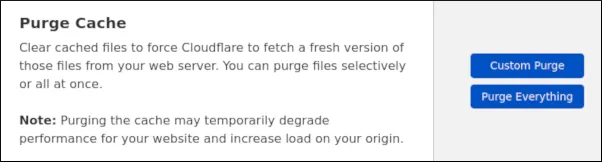
Clear Entire Cache
Section titled “Clear Entire Cache”- Click Purge Everything, then click Purge Everything again to confirm.
- Note: It may take up to 30 seconds for the cache to clear completely.
Clear Specific Files (Custom Purge)
Section titled “Clear Specific Files (Custom Purge)”- Click Custom Purge.
- Enter the complete URL(s) of the files you want to remove from the cache.
- Click Purge to clear the selected files.
More Information
Section titled “More Information”For additional guidance, visit https://www.cloudflare.com.