

Implementing Google Authentication for WordPress
Adding Google Authentication (two‑factor authentication, 2FA) to WordPress strengthens your site’s security by requiring a time‑limited code in addition to your password. On ruachost.com, you can enable Google Authentication using the Google Authenticator plugin.
Why Use Google Authentication?
Section titled “Why Use Google Authentication?”- Protects against brute‑force login attempts.
- Adds an extra layer of security beyond passwords.
- Ensures only legitimate users can access the WordPress dashboard.
Installing the Google Authenticator Plugin
Section titled “Installing the Google Authenticator Plugin”- Log in to WordPress with an administrator account.
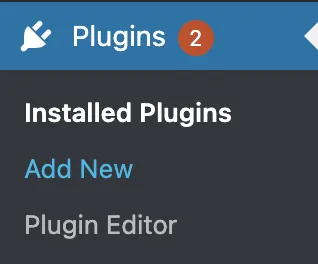
- In the dashboard, go to Plugins → Add New.
- Search for Google Authenticator.
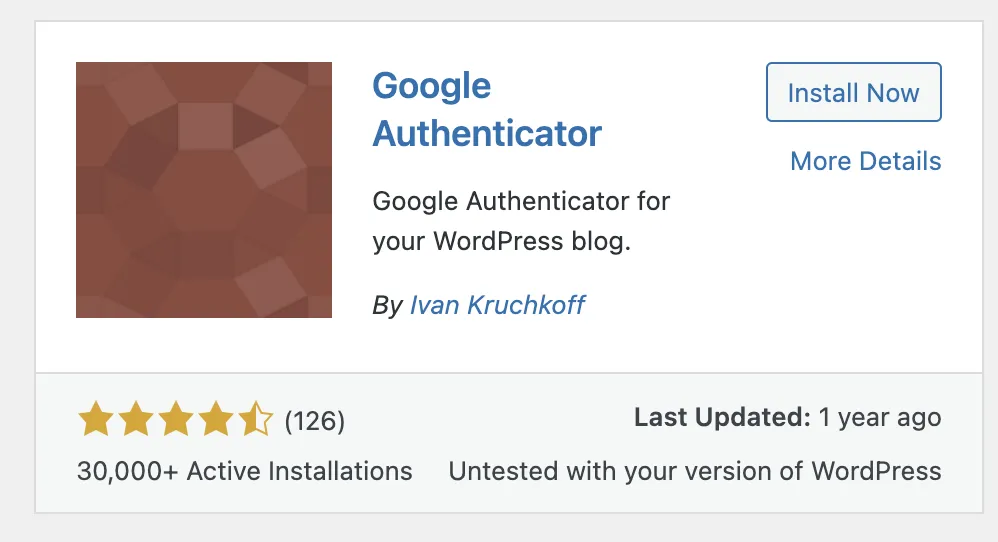
- Click Install Now, then Activate Plugin.
✅ The plugin is now installed.
⚙️ Configuring Google Authentication
Section titled “⚙️ Configuring Google Authentication”-
Edit Admin Profile.
- Go to Users → Profile (or Edit Profile).
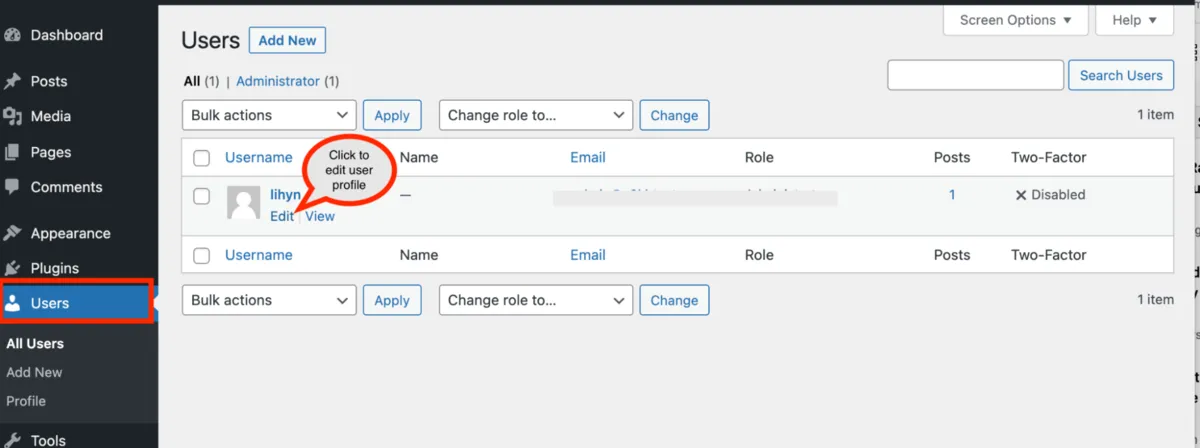
- Scroll down to Google Authenticator Settings.
- Go to Users → Profile (or Edit Profile).
-
*Enable Authentication.*
- Check the Active box to enable Google Authentication.
- Optionally enable Relaxed Mode (allows codes to remain valid for up to 4 minutes).
-
Set Description and Secret Key.
- Description → The account name shown in the Google Authenticator app.
- Secret Key → Used if you cannot scan the QR code.
- ⚠️ Note: iPhone does not accept spaces in the description field.
-
Enable App Password (Optional).
- Use only if your site requires XML‑RPC (remote publishing).
-
Save Settings.
- Click Update User to apply changes.
Configuring the Google Authenticator App
Section titled “Configuring the Google Authenticator App”- Install the Google Authenticator app on your mobile device (Android/iOS).
- Open the app → Tap the + icon → Choose Scan QR code or Enter key manually.
- Scan the QR code or enter the secret key from your WordPress profile.
- A 6‑digit code will appear with a 1‑minute countdown timer.
Logging In with Google Authentication
Section titled “Logging In with Google Authentication”- On the WordPress login page, enter your username and password.
- A new field will appear asking for the Google Authenticator code.
- Enter the 6‑digit code from your app → Access granted.