

Viewing and changing settings for shared hosting accounts
Your Ruachost Client Area makes it easy to view and manage the settings of your shared hosting accounts. From here, you can check resource usage, log in to cPanel or Webmail, and adjust key account options.
Accessing Your Hosting Account
Section titled “Accessing Your Hosting Account”To view your hosting account details:
- Log in to the ruachost.com Client Area.
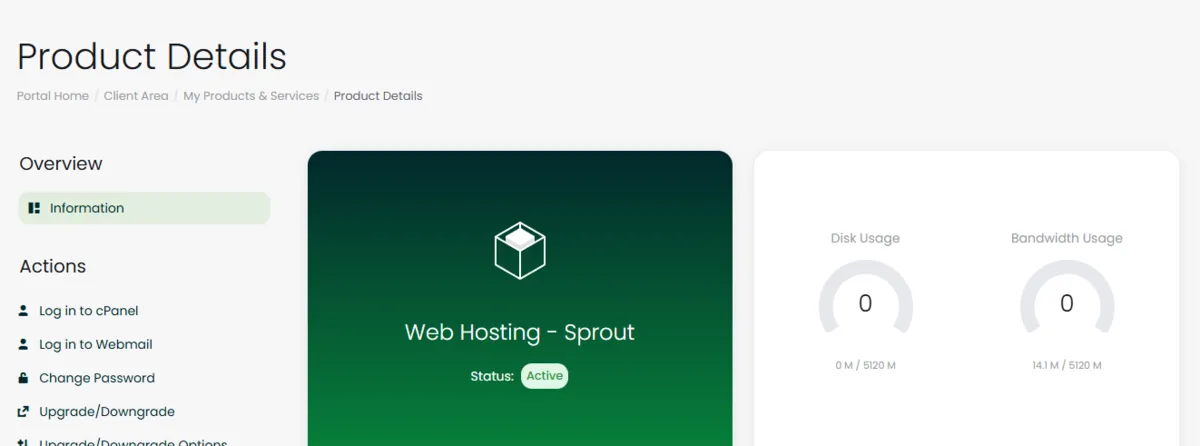
- From the Dashboard, select the hosting plan you want to manage.
- You’ll be taken to the Hosting Account Overview page.
Viewing Resource Usage
Section titled “Viewing Resource Usage”The Disk and Bandwidth Usage panel shows your current usage against your plan limits.
- Disk Usage – how much storage space you’ve used
- Bandwidth Usage – how much data transfer has been consumed
- Last Updated – when the usage was last refreshed
Monitoring these values helps you avoid hitting your plan limits.
Account Actions
Section titled “Account Actions”On the left-hand side, you’ll find the Actions Panel, which provides quick access to essential account management tools:
- Log in to cPanel – access your hosting control panel
- Log in to Webmail – check your email accounts directly
- Change Password – update your hosting account password
- Upgrade/Downgrade – switch to a different hosting plan
- Request Cancellation – submit a cancellation request if needed
Quick Shortcuts
Section titled “Quick Shortcuts”The Quick Shortcuts Panel gives you one-click access to commonly used features:
- Email Accounts – create and manage email addresses
- Forwarders – set up email forwarding rules
- Autoresponders – configure automatic replies
- Backup – generate and download backups of your site
- Cron Jobs – schedule automated tasks
- File Manager – manage files directly in your browser
- phpMyAdmin – access and manage your databases
- MySQL Databases – create and manage databases
These shortcuts save time by taking you directly to the most frequently used tools.
Changing Your Hosting Password
Section titled “Changing Your Hosting Password”To change your hosting account password:
- In the Actions Panel, click Change Password.
- Enter your new password.
- Save your changes.
Important: Choose a strong password to keep your account secure.