

How to Activate Two-Factor Authentication (2FA) on Your Ruachost Account
Overview
Section titled “Overview”Two-Factor Authentication (2FA) adds an additional layer of security to your Ruachost account by requiring a verification code from your mobile device each time you log in. This helps protect your account even if your password is compromised.
Follow the simple steps below to enable 2FA.
1. Log In to Your Client Dashboard
Section titled “1. Log In to Your Client Dashboard”Visit the Ruachost Client Area and sign in using your email and password.
2. Access Your Account Menu
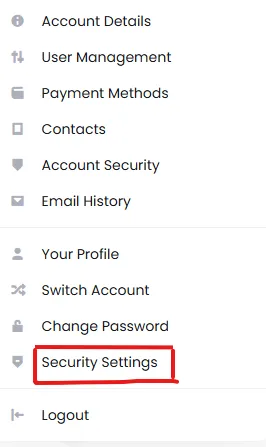
Section titled “2. Access Your Account Menu”On the top-right corner of the dashboard, click on your account name to reveal a dropdown menu.
3. Navigate to Security Settings
Section titled “3. Navigate to Security Settings”From the dropdown, select “Security Settings.”
4. Enable Two-Factor Authentication
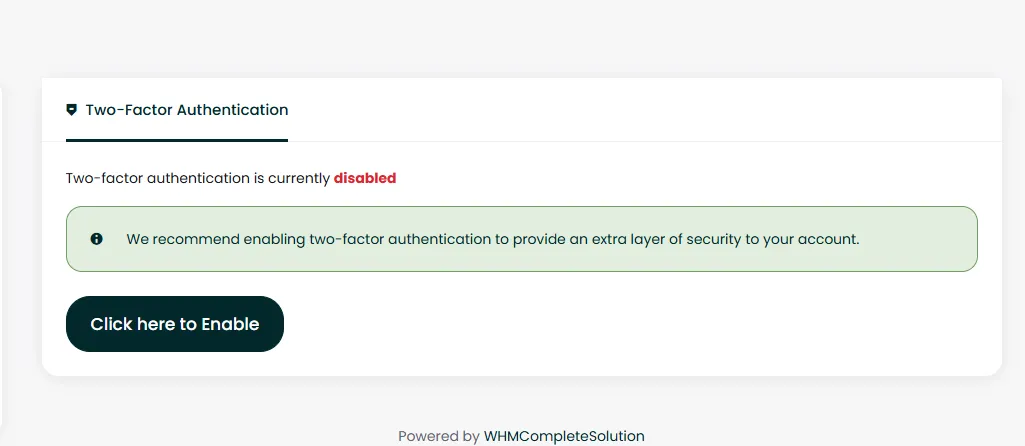
Section titled “4. Enable Two-Factor Authentication”On the Security Settings page, you’ll see that Two-Factor Authentication is disabled by default.
Click the link labeled “Click here to enable”.
5. Follow the Setup Prompts
Section titled “5. Follow the Setup Prompts”You will be guided through the setup process, which includes:
- Scanning a QR code using an authentication app such as Google Authenticator, Authy, or Microsoft Authenticator.
- Entering the 6-digit code generated by your app.
- Confirming the setup to activate 2FA.
6. Confirmation
Section titled “6. Confirmation”Once completed, your account will now have Two-Factor Authentication enabled, adding stronger security to your login process.
Need Help?
Section titled “Need Help?”If you experience any issues during setup, feel free to contact Ruachost Support—we’re always happy to assist!