

Using the Softaculous WordPress Manager
The Softaculous WordPress Manager enables you to manage all of your WordPress sites from one convenient interface inside cPanel. It simplifies tasks such as logging in, updating WordPress, managing plugins and themes, and configuring advanced settings.
Accessing WordPress Manager
Section titled “Accessing WordPress Manager”-
Log in to cPanel.
-
On the Tools page, locate the Softaculous Apps Installer section.
-
Click the WordPress icon in the top menu bar.

-
A list of your WordPress sites will appear.
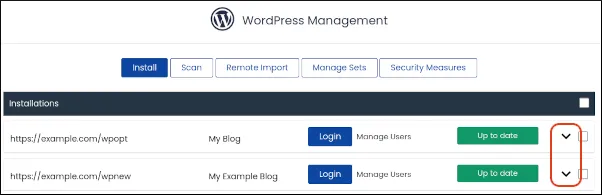
-
If no sites appear, click Scan to detect existing installations.
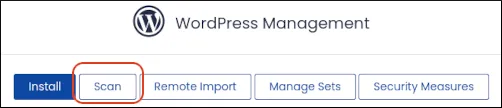
-
To install a new site, click Install.
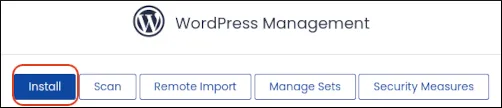
-
Features of WordPress Manager
Section titled “Features of WordPress Manager”Automatic Site Login
Section titled “Automatic Site Login”- Click Login next to a site to log in automatically without entering credentials.
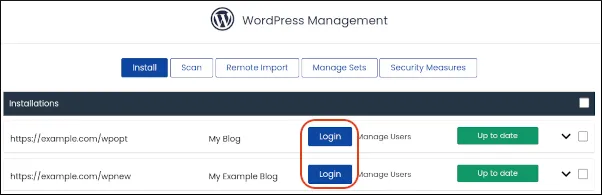
⬆️ Upgrades
Section titled “⬆️ Upgrades”-
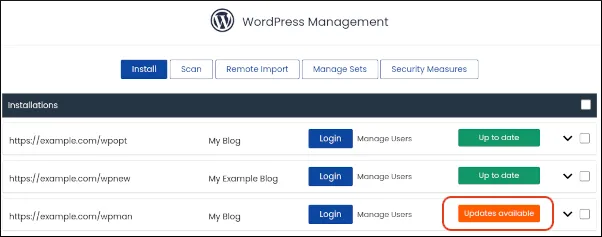
Upgrade WordPress core to the latest version.
-
Configure automatic upgrades:
- Minor versions only (e.g., 6.1 → 6.1.1)
- Major and minor versions (e.g., 6.1 → 6.2)
Plugins
Section titled “Plugins”- Install, enable, disable, update, or delete plugins directly from the Manager.
- Search for new plugins from WordPress.org and install them instantly.
Themes
Section titled “Themes”- Install, enable, disable, update, or delete themes.
- Search for new themes from WordPress.org and install them.
Cron Job
Section titled “Cron Job”-
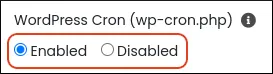
Configure WordPress scheduled tasks (
wp-cron.php).
-
Options:
- Enabled → WordPress uses its virtual cron job.
- Disabled → A system cron job runs at fixed intervals (twice per hour).
Site URL 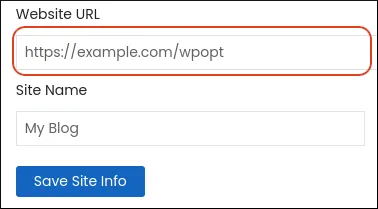
Section titled “Site URL ”- Change the WordPress site URL directly from the Manager.
Password Reset
Section titled “Password Reset”- Reset WordPress user passwords.
- Generate strong random passwords using the built‑in key icon.
Search Engine Visibility
Section titled “Search Engine Visibility ”- Enable or disable search engine indexing.
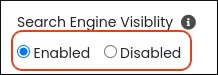
- Useful when your site is under construction.