

Domain management in the Client Area
The Domain Management section of your Ruachost hosting panel allows you to view domain details, configure nameservers, enable registrar lock, update contact information, and obtain transfer codes. This guide walks you through the key features.
Viewing Your Domains
Section titled “Viewing Your Domains”To view your domains:
-
Log in to the ruachost.com Client Area.
-
From the top navigation, click Domains → My Domains.
-
You’ll see a list of all domains registered under your account, including:
-
Domain Name
Section titled “Domain Name” -
Next Due Date
Section titled “Next Due Date” -
Auto Renew Status
Section titled “Auto Renew Status” -
Domain Status
Section titled “Domain Status”
-
From here, you can filter, search, and manage each domain individually.
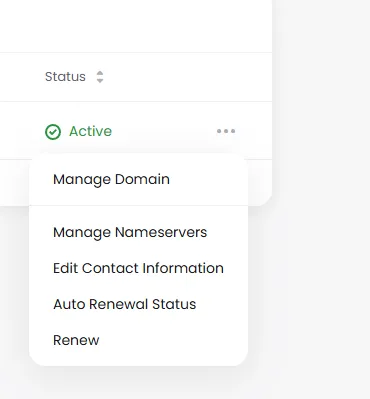
Managing Nameservers
Section titled “Managing Nameservers”You can change where your domain points by updating its nameservers.
-
Select the domain you want to manage.
-
In the left-hand menu, click manage Nameservers.
-
Choose one of the following:
- Use default nameservers – points to Ruachost’s default DNS.
- Use custom nameservers – enter your own DNS provider’s nameservers.
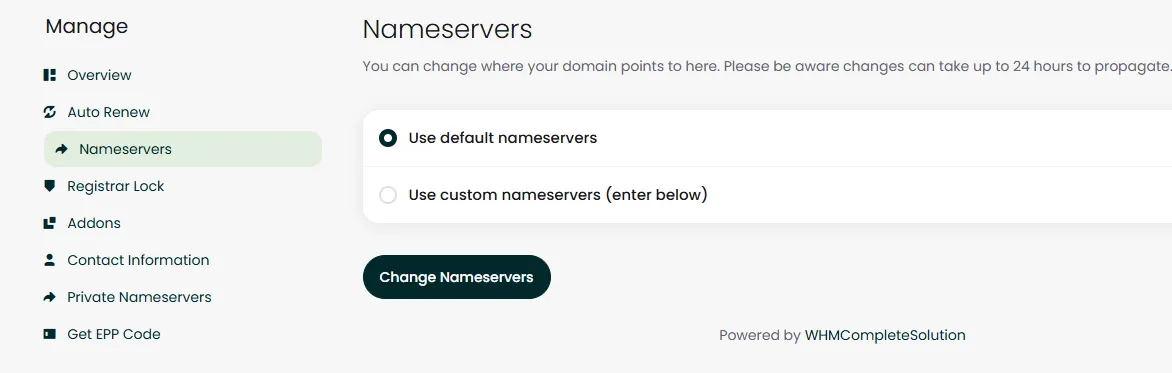
⚠️ Note: DNS changes can take up to 24 hours to propagate worldwide.
Registrar Lock
Section titled “Registrar Lock”For security, domains are usually locked to prevent unauthorized transfers.
- To manage this, go to Registrar Lock in the domain menu.
- Toggle the lock ON to prevent transfers.
- Toggle it OFF only if you intend to transfer the domain to another registrar.
Updating Contact Information
Section titled “Updating Contact Information”Keeping your domain contact details up to date is important for ICANN compliance and renewal notices.
- Go to Contact Information in the domain menu.
- Update registrant, admin, or technical contact details.
- Save your changes.
Obtaining an EPP Code
Section titled “Obtaining an EPP Code”If you want to transfer your domain to another registrar, you’ll need an EPP Code (Extensible Provisioning Protocol) which also called an Auth Code or Transfer Key.
- Select your domain.
- Click Get EPP Code.
- The code will be sent to your registered email address.